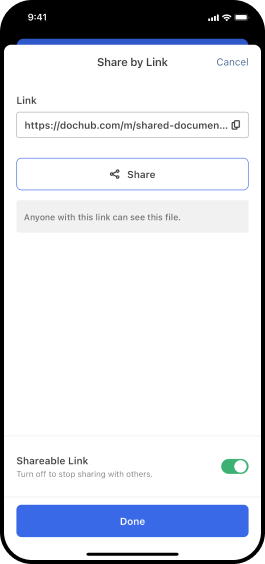
Easily Set Signing Order for a PDF with DocHub mobile app

Use DocHub for your paperwork-related tasks whenever needed. Install our free app to Set Signing Order for a PDF and much more from any spot, with only an internet connection required.


intro decoration

Discover a full-featured mobile app to set signing order for a pdf wherever you are

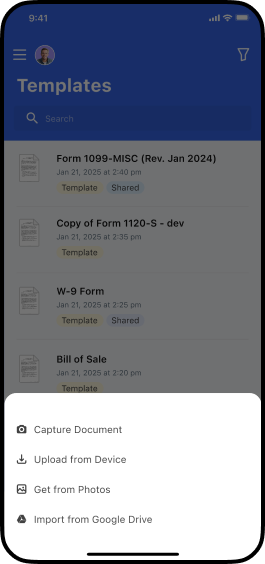
Upload

Add documents in a few taps. Upload a file from your device, select its photo or snap a picture of your document with your device camera.

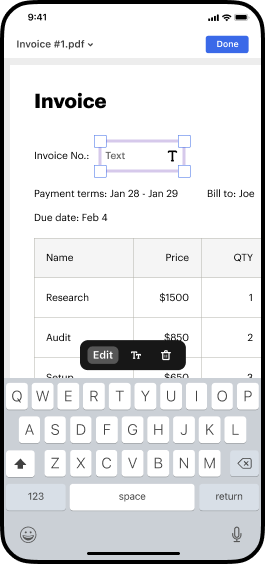
Edit

Add text in a few taps. Leave comments, highlight or whiteout text, and rearrange pages from your mobile device.

Templates

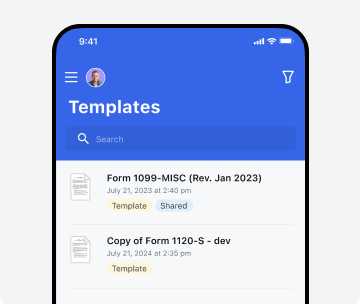
Turn your important documents into templates that you can easily share with others and get them completed anywhere.

card decoration
card decoration

Sign and send

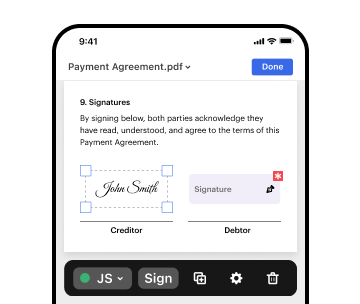
Sign documents using your finger or stylus. Collect signatures from anyone in any order and track document progress from your mobile device.
card decoration
card decoration

Organize and folders

Organize documents by placing them in folders and easily locate the file you need using the quick search tool directlyfrom your mobile device.

How to set signing order for a pdf on your iPhone and Android device

1
Open a PDF
Open existing PDFs or add a new one. Upload files or their photos, or snap a picture of your document in seconds.
slide image
2
Edit and annotate PDF
Add text and images. Leave comments, highlight, or white out text anywhere on the document with a single tap.
slide image
3
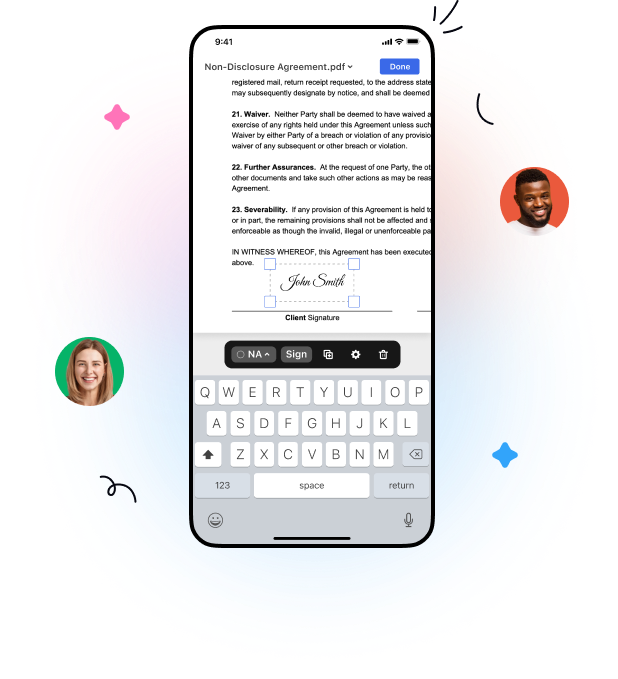
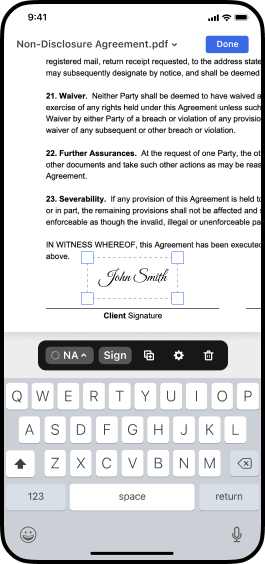
Sign your PDF
Draw, type, or take a picture of your signature and add it anywhere on the document. Then, send your PDF out for signing to multiple people in any order.
slide image
4
Share or save PDF
Share your PDF via email, a public or secure link, or popular messenger apps. When completed, simply save documents to your device.
slide image

Your work done faster, anywhere & anytime

Edit, sign, and share documents on the go with the DocHub mobile app.

icon
A powerful PDF toolkit in the palm of your hand
Discover the DocHub app to set signing order for a pdf and make any necessary adjustments in your paperwork. It works everywhere so you can do your job anytime on your phone.
icon
Go from sent to signed in a tap
Sign and collect signatures on the move without missing a beat. Open the DocHub app, create an eSignature request, specify who needs to sign, and tap send.
icon
Stay connected at all hours
Don't let distance slow down your workflows. Share your documents in a few taps and let others view or edit them using the device of their choice.
icon
Speed up routine workflows
Reclaim working hours by creating fillable forms and templates from your most used documents. Share templates with multiple people from your phone to capture data in minutes.
icon
Keep documents on track from anywhere
Check up on your document's progress no matter your location. Get instant push alerts directly in your DocHub dashboard and email notifications every time your document is finalized.
icon
Keep your docs organized
Save time tracking down documents. Place them in folders and use search to quickly find the document you need right from your mobile device.
section decoration

Work confidently by securing your documents

  • iconSecure document transfers with end-to-end encryption.
  • iconEnable biometric authentication to secure access to your documents.
  • iconView every document action by users via the detailed record of document activity.
  • iconUse the DocHub app to create legally-binding eSignatures certified under the ESIGN Act.


Try the DocHub mobile app to simplify document workflows from anywhere

See why our customers choose DocHub

Great solution for PDF docs with very little pre-knowledge required.
"Simplicity, familiarity with the menu and user-friendly. It's easy to navigate, make changes and edit whatever you may need. Because it's used alongside Google, the document is always saved, so you don't have to worry about it."
Pam Driscoll F
Teacher
A Valuable Document Signer for Small Businesses.
"I love that DocHub is incredibly affordable and customizable. It truly does everything I need it to do, without a large price tag like some of its more well known competitors. I am able to send secure documents directly to me clients emails and via in real time when they are viewing and making alterations to a document."
Jiovany A
Small-Business
I can create refillable copies for the templates that I select and then I can publish those.
"I like to work and organize my work in the appropriate way to meet and even exceed the demands that are made daily in the office, so I enjoy working with PDF files, I think they are more professional and versatile, they allow..."
Victoria G
Small-Business

Got questions?

Here are some common questions from our customers that may provide you with the answer you're looking for. If you can't find an answer to your question, please don't hesitate to reach out to us.
Contact us
How to rearrange pages in a PDF: Open the Organize Pages tool from the top menu or the right pane (Tools Organize Pages) Select one or more page thumbnails (page numbers are underneath). Use Shift to select a page range. Do one of the following: Drag and drop pages to reorder PDF pages how you want. Save your file.
Set up your desired order by highlighting a page thumbnail. Then drag and drop the page into your new desired location. You can also rotate pages to portrait or landscape mode. If you need to delete a page, select it and click the trashcan icon in the toolbar.
To do so: To add a signature, select Add signature. In the dialog that appears, type, draw, or add an image of your signature and then select Done. To add your initials, select Add initials. In the dialog that appears, type, draw, or add an image of your initials and then select Done.
PDFChef is a free service that lets you rearrange the pages in a PDF for brochure or booklet printing or any other reason. Note that you can only process up to 50 MB of files in total.
Move pages in a PDF: Choose View Thumbnails or View Contact Sheet, then drag the pages to their new location.
The signing order helps you control the order where your recipients receive and sign your documents. A convenient signing order diagram helps you visualize how your envelope will be distributed to the recipients. With Set signing order enabled, you can specify a recipient routing order.
From the global bar in the upper left, select All tools. Then select Request e-signatures. In the dialog that appears, add the email address of one or more recipients you want to add as signers. (Optional) Modify the agreement name and message if desired.

How to use the DocHub mobile app to easily Set Signing Order for a PDF on the go

Feel the freedom to efficiently manage your paperwork anytime and from any location. Set up DocHub mobile application to Set Signing Order for a PDF and complete all document management tasks on the go. With its intuitive interface, you can get things done in just a few taps. All you need for your work is a stable internet connection.

Follow the guidelines below:

  1. Find the DocHub app in the App Store or Google Drive and quickly install it.
  2. Create an account or sign in with your credentials if you’re already registered.
  3. Tap on the menu to configure your account and tweak other preferences per your needs.
  4. Upload or pick a file in the Dashboard and open it in the editor for adjustments.
  5. Modify the content, add fillable fields, eSign the form, and collect eSignatures from other people.
  6. Download, export, or share the copy via email or a shareable link.

DocHub transforms document management from tedious to effortless and efficient. Start using our mobile application to Set Signing Order for a PDF today and take your productivity to the higher level!