

Slide sign in the Letter of Recommendation for Employee

Aug 6th, 2022
forms filled out
0
forms filled out
forms signed
0
forms signed
forms sent
0
forms sent
Service screenshot
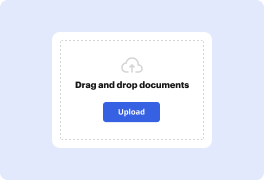
01. Upload a document from your computer or cloud storage.
Service screenshot
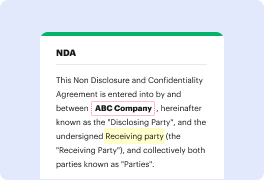
02. Add text, images, drawings, shapes, and more.
Service screenshot
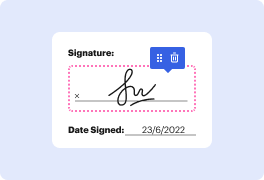
03. Sign your document online in a few clicks.
Service screenshot
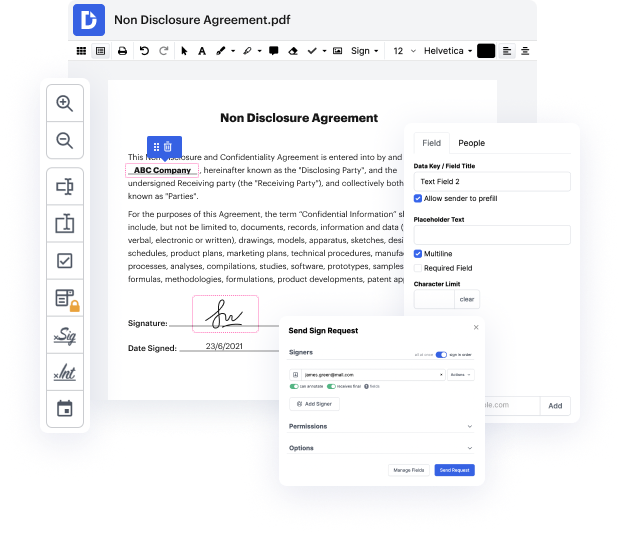
04. Send, export, fax, download, or print out your document.

Use our all-in-one document editor to slide sign in Letter of Recommendation for Employee in seconds.

Form edit decoration

DocHub allows you to slide sign in Letter of Recommendation for Employee quickly and conveniently. No matter if your document is PDF or any other format, you can easily alter it using DocHub's easy-to-use interface and robust editing tools. With online editing, you can change your Letter of Recommendation for Employee without the need of downloading or installing any software.

DocHub's drag and drop editor makes customizing your Letter of Recommendation for Employee easy and efficient. We securely store all your edited documents in the cloud, allowing you to access them from anywhere, whenever you need. In addition, it's effortless to share your documents with people who need to review them or add an eSignature. And our native integrations with Google products allow you to transfer, export and alter and endorse documents directly from Google apps, all within a single, user-friendly program. In addition, you can easily transform your edited Letter of Recommendation for Employee into a template for repeated use.

How do you slide sign in Letter of Recommendation for Employee with DocHub?

  1. First, add your Letter of Recommendation for Employee to DocHub.
  2. Next, choose ADD NEW > Select from Device or transfer your document yourself from the cloud.
  3. As soon as opened, you can start applying tweaks utilizing tools in the top and right-hand tabs. In these tabs, you can find the option to slide sign in your Letter of Recommendation for Employee.
  4. Hit Done at the top and then choose one of the methods in the right-hand menu of the DocHub dashboard to save your form: download, combine and split, reorder pages, change formats, etc.

All executed documents are securely saved in your DocHub account, are effortlessly managed and moved to other folders.

DocHub simplifies the process of certifying document workflows from the outset!

PDF editing simplified with DocHub

icon
Seamless PDF editing
Editing a PDF is as simple as working in a Word document. You can add text, drawings, highlights, and redact or annotate your document without affecting its quality. No rasterized text or removed fields. Use an online PDF editor to get your perfect document in minutes.
icon
Smooth teamwork
Collaborate on documents with your team using a desktop or mobile device. Let others view, edit, comment on, and sign your documents online. You can also make your form public and share its URL anywhere.
icon
Automatic saving
Every change you make in a document is automatically saved to the cloud and synchronized across all devices in real-time. No need to send new versions of a document or worry about losing information.
icon
Google integrations
DocHub integrates with Google Workspace so you can import, edit, and sign your documents directly from your Gmail, Google Drive, and Dropbox. When finished, export documents to Google Drive or import your Google Address Book and share the document with your contacts.
icon
Powerful PDF tools on your mobile device
Keep your work flowing even when you're away from your computer. DocHub works on mobile just as easily as it does on desktop. Edit, annotate, and sign documents from the convenience of your smartphone or tablet. No need to install the app.
icon
Secure document sharing and storage
Instantly share, email, and fax documents in a secure and compliant way. Set a password, place your documents in encrypted folders, and enable recipient authentication to control who accesses your documents. When completed, keep your documents secure in the cloud.

Drive efficiency with the DocHub add-on for Google Workspace

Access documents and edit, sign, and share them straight from your favorite Google Apps.
Install now

How to slide sign in the Letter of Recommendation for Employee

4.9 out of 5
64 votes

[MUSIC] What advice do you have for choosing recommenders? I dont know if applicants really appreciate how important the letters of reference are. Yeah. Its really the one opportunity that we get to see you through someone elses eyes objectively. What did you do and how did you do it? So for me, put a lot of emphasis on making the selection, I can give you some tips on how to think about it. At Stanford we request two, in one we ask for a current direct supervisor, or the best alternative, if that is impossible or inappropriate. And for the second recommendation, we also ask for someone whos supervised your work, but it could be from a nonprofit, it could be extracurricular, or from the same organization. And when you think about selecting them what you really, just as Ive asked applicants in their essays to tell us about the impact that theyve had, because this past behavior will predict future behavior, thats the echo that we want to see in a reference. So find someon

video background

Got questions?

Here are some common questions from our customers that may provide you with the answer you're looking for. If you can't find an answer to your question, please don't hesitate to reach out to us.
Contact us
Electronic signatures have gained legal acceptance worldwide, making them a convenient and legally compliant method for signing various documents, including recommendation letters.
What to include in a recommendation letter The employees name. Your relationship to the employee. An overview of the company and position. Your title and contact details. The length of time you have known the employee. An explanation of why youre recommending the employee. The specifics about the employee and their work.
Letters of recommendation must be signed, dated, and on official letterhead. Unless explicitly asked by the student, do not recommend a student for a specific school or program (e.g., applicant to Penn Medical School).
In short: sign your letter, but do it the easy and electronic way if you can. I do not think you will require a sign on the top of your name. It is because, you will send the letter via email or online recommendation form.
The electronic standardized letter of recommendation allows for a standard display of the credentials of the letter writer, the degree of involvement between the applicant and the letter writer, and an ability to select answers to questions that are mapped to the 6 ACGME core competencies. Electronic Standardized Letter of Recommendation (eSLOR) aoassn.org standardized-electronic-letter-o aoassn.org standardized-electronic-letter-o
Letters of recommendation are almost always electronic files, usually in . docx or. pdf format, which are submitted electronically by their authorsmost often by uploading them to a web site, but sometimes via email. There is no need to print the letter. Should I submit my letters of recommendation electronically or quora.com Should-I-submit-my-letters-of- quora.com Should-I-submit-my-letters-of-
Letters of recommendation must be signed, dated, and on official letterhead. Unless explicitly asked by the student, do not recommend a student for a specific school or program (e.g., applicant to Penn Medical School). Advice: Writing Medical School Letters of Recommendation upenn.edu advice-writing-medical upenn.edu advice-writing-medical
How do I sign a letter of recommendation? As a law school professor, Ive written a lot of letters of recommendation. I always address them, To Whom It May Concern, and sign them Sincerely. Be sure to include a sentence or two about yourself and how youve come to know the subject of the letter. How to sign my signature when waiving away my rights in the letter quora.com How-do-I-sign-my-signature-w quora.com How-do-I-sign-my-signature-w

See why our customers choose DocHub

Great solution for PDF docs with very little pre-knowledge required.
"Simplicity, familiarity with the menu and user-friendly. It's easy to navigate, make changes and edit whatever you may need. Because it's used alongside Google, the document is always saved, so you don't have to worry about it."
Pam Driscoll F
Teacher
A Valuable Document Signer for Small Businesses.
"I love that DocHub is incredibly affordable and customizable. It truly does everything I need it to do, without a large price tag like some of its more well known competitors. I am able to send secure documents directly to me clients emails and via in real time when they are viewing and making alterations to a document."
Jiovany A
Small-Business
I can create refillable copies for the templates that I select and then I can publish those.
"I like to work and organize my work in the appropriate way to meet and even exceed the demands that are made daily in the office, so I enjoy working with PDF files, I think they are more professional and versatile, they allow..."
Victoria G
Small-Business
be ready to get more

Edit and sign PDFfor free

Get started now