

Mortgage Deed - Create Signing Links with Link2Fill

Aug 6th, 2022
forms filled out
0
forms filled out
forms signed
0
forms signed
forms sent
0
forms sent
Service screenshot
01. Upload a document from your computer or cloud storage.
Service screenshot
02. Add text, images, drawings, shapes, and more.
Service screenshot
03. Sign your document online in a few clicks.
Service screenshot
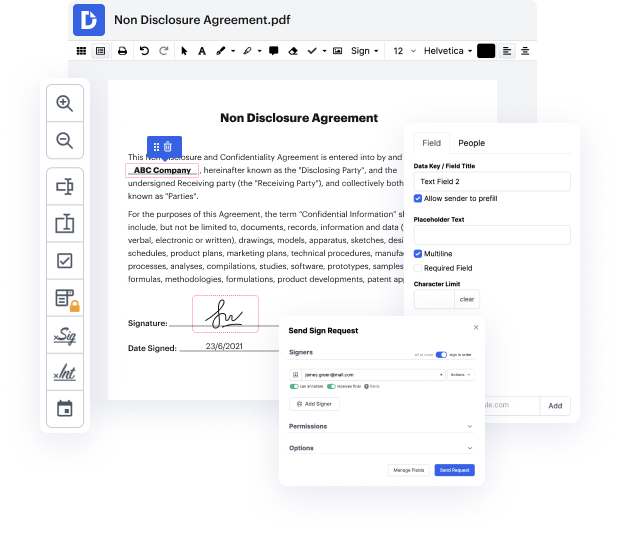
04. Send, export, fax, download, or print out your document.

Straightforward instructions on the way to Mortgage Deed - Create Signing Links with Link2Fill

Form edit decoration

Getting full control of your files at any time is important to alleviate your everyday tasks and increase your productivity. Accomplish any goal with DocHub tools for papers management and practical PDF file editing. Gain access, adjust and save and integrate your workflows with other safe cloud storage services.

Follow these easy steps to Mortgage Deed - Create Signing Links with Link2Fill employing DocHub:

  1. Log in in your account or register for free with your Google account or email address.
  2. Select a document you want to add from your computer or integrated cloud storage (Box, Google Drive, or OneDrive).
  3. Gain access to DocHub advanced editing tools with a user-friendly interface and edit Mortgage Deed according to your needs.
  4. Mortgage Deed - Create Signing Links with Link2Fill and save changes.
  5. Very easily fix any mistakes prior to continuing with the file export.
  6. Download, export and deliver or easily share your papers with your co-workers and consumers.
  7. Get back to your papers or create Templates to increase your productivity

DocHub gives you lossless editing, the chance to work with any format, and safely eSign documents without the need of looking for a third-party eSignature software. Make the most of your document management solutions in one place. Check out all DocHub functions today with your free of charge account.

PDF editing simplified with DocHub

icon
Seamless PDF editing
Editing a PDF is as simple as working in a Word document. You can add text, drawings, highlights, and redact or annotate your document without affecting its quality. No rasterized text or removed fields. Use an online PDF editor to get your perfect document in minutes.
icon
Smooth teamwork
Collaborate on documents with your team using a desktop or mobile device. Let others view, edit, comment on, and sign your documents online. You can also make your form public and share its URL anywhere.
icon
Automatic saving
Every change you make in a document is automatically saved to the cloud and synchronized across all devices in real-time. No need to send new versions of a document or worry about losing information.
icon
Google integrations
DocHub integrates with Google Workspace so you can import, edit, and sign your documents directly from your Gmail, Google Drive, and Dropbox. When finished, export documents to Google Drive or import your Google Address Book and share the document with your contacts.
icon
Powerful PDF tools on your mobile device
Keep your work flowing even when you're away from your computer. DocHub works on mobile just as easily as it does on desktop. Edit, annotate, and sign documents from the convenience of your smartphone or tablet. No need to install the app.
icon
Secure document sharing and storage
Instantly share, email, and fax documents in a secure and compliant way. Set a password, place your documents in encrypted folders, and enable recipient authentication to control who accesses your documents. When completed, keep your documents secure in the cloud.
dochub logo
google logo

Drive efficiency with the DocHub add-on for Google Workspace

Access documents and edit, sign, and share them straight from your favorite Google Apps.
Install now

How to Mortgage Deed - Create Signing Links with Link2Fill

5 out of 5
28 votes

so youre a limited company director and youre trying to purchase an investment property your solicitors sent over a mortgage deed and just asked you casually to sign it youve taken a look at the deed and realized that its really confusing and youre not actually sure where you need to sign thats what this video is about Im going to tell you exactly where you need to sign whether youre in a partnership or if youre a sole director of a limited company my names Dan welcome to another video if its your first time here and youre interested in hearing about all things buy to let property related make sure you start now by subscribing and clicking the Bell to ensure that you dont miss a thing so if youre ready lets jump in and I will show you on screen exactly where you need to sign so this is a standard buy to let mortgage deed it comes in the form of a two-page document and at the very top of the first page here youll say that its asking for the date now you dont want to p

video background

Got questions?

Here are some common questions from our customers that may provide you with the answer you're looking for. If you can't find an answer to your question, please don't hesitate to reach out to us.
Contact us
Electronic signatures can be used to sign documents of all shapes and sizes, including: Offer letters. Sales contracts. Permission slips. Rental/lease agreements. Liability waivers. Financial documents.
Mortgage Insurance Endorsement Documents: Electronic signatures will be accepted on all documents requiring signatures included in the case binder for mortgage insurance except the Note. FHA will accept electronic signatures on the Note for forward Mortgages only.
Wet signature is a term to describe the process of signing a physical paper document, form or contract with pen and ink. It is often used to distinguish pen and paper signatures from electronic signatures or e-signatures. Throughout history a wet signature represented a binding contract and was used to prevent fraud.
Yes. Loans closed through the remote online notarization process can include either wet-ink signed promissory Notes (i.e. non-eMortgages) or electronically signed Notes (i.e. eMortgages). Sellers can deliver loans with electronically signed Notes, only if they are approved to deliver eMortgages.
Click review and sign link in email. Click review and sign link in email. In the email you received from the sender of the document to sign, click the link labeled Click here to review and sign Click prompt in document. Create electronic signature. Select signature option. Sign document. Finalize signature. Send.
Documents and deeds can easily be signed and witnessed electronically with eWitness. Does your company need electronic witnessing? Electronic witnessing has long been required by legal teams, clients and witnesses to avoid lengthy delays to contracts via the post.
As outlined by the National Telecommunications Information Administration (NTIA), electronic signatures are not legally valid when signing: Wills and testamentary trusts. State statutes governing divorce, adoption or other family law. Court orders or official court documents. Notice of cancellation of utility services.
Does Fannie Mae accept electronic signatures on mortgage closing documents? Yes. Per the Selling Guide, we accept eSignatures on most documents used to originate or service a loan. However, lenders seeking to service or deliver eNotes must seek prior approval.

See why our customers choose DocHub

Great solution for PDF docs with very little pre-knowledge required.
"Simplicity, familiarity with the menu and user-friendly. It's easy to navigate, make changes and edit whatever you may need. Because it's used alongside Google, the document is always saved, so you don't have to worry about it."
Pam Driscoll F
Teacher
A Valuable Document Signer for Small Businesses.
"I love that DocHub is incredibly affordable and customizable. It truly does everything I need it to do, without a large price tag like some of its more well known competitors. I am able to send secure documents directly to me clients emails and via in real time when they are viewing and making alterations to a document."
Jiovany A
Small-Business
I can create refillable copies for the templates that I select and then I can publish those.
"I like to work and organize my work in the appropriate way to meet and even exceed the demands that are made daily in the office, so I enjoy working with PDF files, I think they are more professional and versatile, they allow..."
Victoria G
Small-Business

Security and compliance

At DocHub, your data security is our priority. We follow HIPAA, SOC2, GDPR, and other standards, so you can work on your documents with confidence.

Learn more
be ready to get more

Edit and sign PDFfor free

Get started now