
Explore new possibilities and Create Menu Templates with AI

*Powered by ChatGPT
Coming soon
Aug 6th, 2022
forms filled out
0
forms filled out
forms signed
0
forms signed
forms sent
0
forms sent
Service screenshot
01. Upload a document from your computer or cloud storage service.
Service screenshot
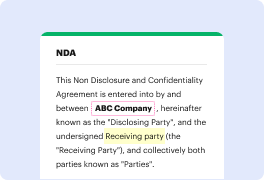
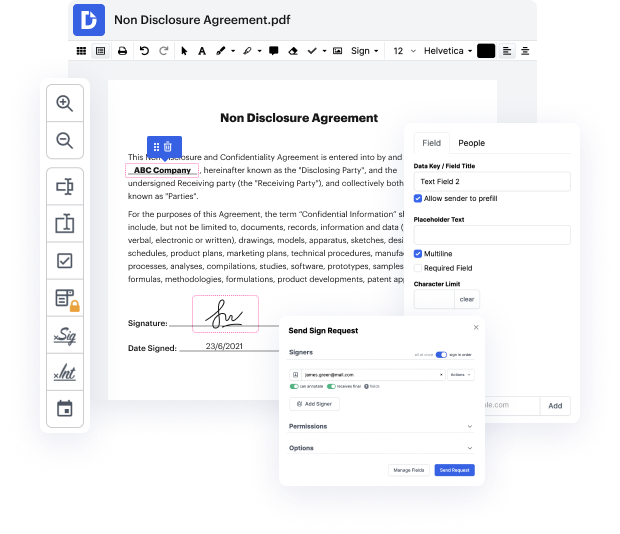
02. Modify your document or let the ai PDF editor summarize, rewrite, or proofread your PDF.
Service screenshot
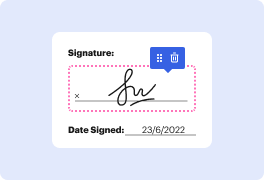
03. Sign your document online in a few clicks.
Service screenshot
04. Send, export, fax, download, or print out your document.

Effortlessly Create Menu Templates using AI

Form edit decoration

Day-to-day business workflows include handling many papers. The main benefit of document managing systems is evident: you reclaim your office time and embrace a lot more eco-friendly practices. DocHub offers upcoming ChatGPT-assisted capabilities to make your document managing even simpler. Create Menu Templates with AI easily, eSign and change your documents, and securely share them with your customers and co-workers. Boost your cooperation and communication with a click.

How you can Create Menu Templates using AI in six steps

  1. Get your DocHub profile to begin working with the editor.
  2. Upload your file from your device or one of the incorporated cloud storage services.
  3. Open AI DocHub robot to Create Menu Templates.
  4. Make other changes utilizing the Manage Fields sidebar.
  5. Assign people to particular fields and provide specific access.
  6. Enjoy smooth record managing on any device.

Forget about cumbersome tasks and over-the-top unnecessary capabilities. DocHub gives just the important capabilities you need to succeed with your business objectives. With our upcoming AI-assisted capabilities, you can be certain you will find it even easier to Create Menu Templates. Start a free trial version right now to discover all the use cases.

A single solution for all your PDF needs

icon
Lossless PDF editing
Edit a PDF as easily as you would a Word document. Add text, images, drawings, and highlight or white out information without affecting document quality. No rasterized text or removed fields.
icon
Secure collaboration and document sharing
Improve teamwork with comments and document permissions that allow others to view, edit, and sign your documents online. Securely send your document via email, fax, public or private link, and export the finalized PDF to the cloud or download it to your device.
icon
Quick data collection
Create and fill out PDF forms online on any device. Turn your form or document into a reusable template and share it via URL or email so anyone can fill out their own copy.
icon
Legally-binding eSignatures
Instantly sign any document — type or draw your signature, or upload an image of it. Request eSignatures from others and track them every step of the way. No need to print and scan.
icon
Google integrations
DocHub extends its PDF editing, form creation, and eSignature capabilities to Google Workspace so you can easily import, export, edit, fill out, and sign your documents directly from your favorite Google Apps.
icon
AI PDF functionality
Improve productivity with DocHub's ai tools. Get quick summaries with the ai PDF summarizer, enhance document readability with an ai that reads PDF, and use the ai PDF editor to ensure the quality of your document’s content.
dochub logo
google logo

Drive efficiency with the DocHub add-on for Google Workspace

Access documents and edit, sign, and share them straight from your favorite Google Apps.
Install now

Got questions about ai menu design?

Here are some common questions from our customers that may provide you with the answer you need. If you can’t find the answer to your menu design ai-related question, please don’t hesitate to rich out to us.
Contact us
Standard restaurant menu sizes are 8.5 x 11 (letter sized) or 8.5 x 14 (recommended). A 3.5 x 8.5 menu is considered small. This works well for an insert describing daily specials.
Your menu boards should be easy to read and understand from a distance. Using a font size of 30pt or larger is recommended, but the smaller type can be used if you choose to have larger screens or have a shorter average distance from your screens.
Download our free docHub Illustrator takeout menu templates available in these standard sizes: 5.5 x 8.5, 8.5 x 11, 8.5 x 14, 11 x 17, and 11 x 25.375. We also have many different fold and size combinations that you can choose from.
iMenuPro is an online menu design and management software that helps foodservice businesses including restaurants, cafes, and bars produce professional menus that are visually appealing. It offers a simple user interface and a number of features that allow you to build, update, and print menus with just a few clicks.
How to Make a Restaurant Menu Write Out all Menu Items. Before you dive into design, you have to learn to write a restaurant menu. Categorize Menu Items. Set Menu Prices. Create Menu Descriptions. Decide on a Menu Color Scheme. Design Your Restaurant Menu. Restaurant Menu Photos. Choose Menu Fonts, Spacing, and Composition.
Here are some common sizes that restaurant owners use for their menus: Lunch Menu: 8.5x11 Dinner Menu: 8.5x11, 8.5x14, or 11x17 Drink or Dessert Menu: 4.25x11, 4.25x14, or 5.5x8. 5
0:29 16:15 Create a Food / Restaurant Menu in Word | Microsoft Word Tutorials YouTube Start of suggested clip End of suggested clip And another column for the prices. So thats five all together. So lets just go. Back. So we needMoreAnd another column for the prices. So thats five all together. So lets just go. Back. So we need five columns. And 17 rows. And then just click ok.
Most menus are built to accommodate the standard paper sizes of 8.5 x 11. If your menu exceeds 12 x 18, consider having separate menus for wine, dessert, and kids in order to keep the size manageable. You dont want to overwhelm your guests. To feature dishes, use table tents, menu boards, or chalk boards.

See why our customers choose DocHub

Great solution for PDF docs with very little pre-knowledge required.
"Simplicity, familiarity with the menu and user-friendly. It's easy to navigate, make changes and edit whatever you may need. Because it's used alongside Google, the document is always saved, so you don't have to worry about it."
Pam Driscoll F
Teacher
A Valuable Document Signer for Small Businesses.
"I love that DocHub is incredibly affordable and customizable. It truly does everything I need it to do, without a large price tag like some of its more well known competitors. I am able to send secure documents directly to me clients emails and via in real time when they are viewing and making alterations to a document."
Jiovany A
Small-Business
I can create refillable copies for the templates that I select and then I can publish those.
"I like to work and organize my work in the appropriate way to meet and even exceed the demands that are made daily in the office, so I enjoy working with PDF files, I think they are more professional and versatile, they allow..."
Victoria G
Small-Business

Security and compliance

At DocHub, your data security is our priority. We follow HIPAA, SOC2, GDPR, and other standards, so you can work on your documents with confidence.

Learn more
be ready to get more

Edit and sign PDFfor free

Get started now