
Explore DocHub’s ChatGPT-assisted features to Add Image to Attachment with AI in Healthcare industry

*Powered by ChatGPT
Coming soon
Aug 6th, 2022
forms filled out
0
forms filled out
forms signed
0
forms signed
forms sent
0
forms sent
Service screenshot
01. Upload a document from your computer or cloud storage service.
Service screenshot
02. Modify your document or let the ai PDF editor summarize, rewrite, or proofread your PDF.
Service screenshot
03. Sign your document online in a few clicks.
Service screenshot
04. Send, export, fax, download, or print out your document.

How to use DocHub’s capabilities to Add Image to Attachment using AI in Healthcare industry

Form edit decoration

Standard online editors can help specialists in Healthcare industry with simple document management tasks. However, an up-to-date AI-powered solution like DocHub offers more capabilities and helps complete your work faster. Choose our ChatGPT-powered tool to Add Image to Attachment along with other business paperwork - you’ll get the results you require in minutes!

Check out the quick guide below to Add Image to Attachment with AI in Healthcare sector:

  1. Register an account in DocHub and sign in after its verification.
  2. Add the Attachment to the editor using one of the available upload methods.
  3. Launch the ChatGPT assistant and choose the tool that lets you Add Image to your form.
  4. Examine the changes suggested by Artificial Intelligence.
  5. Make edits where necessary, and verify at least once more before submitting.
  6. Generate your signature and request it from others if your form needs approval.
  7. Click on Menu to download, export, or share your professional paperwork.

Whatever your document management needs, you can rely on our progressive solution and complete your tasks in a snap. Try it today!

A single solution for all your PDF needs

icon
Lossless PDF editing
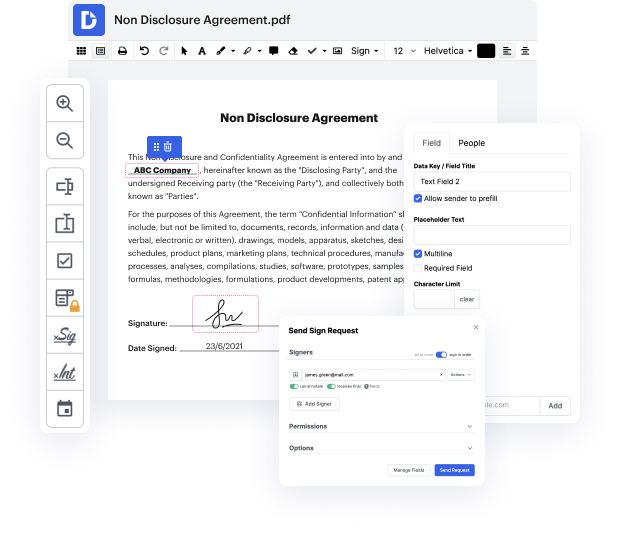
Edit a PDF as easily as you would a Word document. Add text, images, drawings, and highlight or white out information without affecting document quality. No rasterized text or removed fields.
icon
Secure collaboration and document sharing
Improve teamwork with comments and document permissions that allow others to view, edit, and sign your documents online. Securely send your document via email, fax, public or private link, and export the finalized PDF to the cloud or download it to your device.
icon
Quick data collection
Create and fill out PDF forms online on any device. Turn your form or document into a reusable template and share it via URL or email so anyone can fill out their own copy.
icon
Legally-binding eSignatures
Instantly sign any document — type or draw your signature, or upload an image of it. Request eSignatures from others and track them every step of the way. No need to print and scan.
icon
Google integrations
DocHub extends its PDF editing, form creation, and eSignature capabilities to Google Workspace so you can easily import, export, edit, fill out, and sign your documents directly from your favorite Google Apps.
icon
AI PDF functionality
Improve productivity with DocHub's ai tools. Get quick summaries with the ai PDF summarizer, enhance document readability with an ai that reads PDF, and use the ai PDF editor to ensure the quality of your document’s content.
dochub logo
google logo

Drive efficiency with the DocHub add-on for Google Workspace

Access documents and edit, sign, and share them straight from your favorite Google Apps.
Install now

Got questions?

Here are some common questions from our customers that may provide you with the answer you're looking for. If you can't find an answer to your question, please don't hesitate to reach out to us.
Contact us
Open the feature layers details page by clicking the layer on the My Content tab of the content page. Locate the Layers list on the Overview tab. Click the Enable attachments link under the layer for which you want to allow attachments.
In the Contents pane, right-click a target layer (the dataset in the correct location) and click Zoom to Layer. In the Contents pane, click the source raster layer you want to georeference. Click the Imagery tab and click Georeference to open the Georeference tab.
Enable attachments On the Analysis tab, in the Geoprocessing group, click Tools. The Geoprocessing pane appears. In the search box, type enable and click Enable Attachments. and choose the source geodatabase feature class containing the features to which you want to attach files.
0:29 5:57 Enable Attachments for Feature Class. Add photos ArcGIS Pro YouTube Start of suggested clip End of suggested clip So i will keep it in the same geodatabase. And i will say. Run. It will take couple seconds. AndMoreSo i will keep it in the same geodatabase. And i will say. Run. It will take couple seconds. And once its done as you see right here on our window.
In the Catalog window or ArcCatalog, right-click the feature class or table to which you want to add attachments, point to Manage, then click Create Attachments. ArcGIS adds a new table to contain the attached files and a relationship class to manage the link between the features or records and their attachments.
A picture. Selecting this element opens the Insert Picture window, where you can browse to a picture file. Click to add the picture at its original size, or draw a rectangle to set the picture size. Once a picture has been added, you can set its transparency on the Format tab.
While still signed in to your ArcGIS Online account, open the feature layers details page by clicking the layer on the My Content tab of the content page. Click the name of the layer in the Layers list on the Overview tab to open its details page. Click the Enable Attachments toggle button.
In the Catalog window or ArcCatalog, right-click the feature class or table to which you want to add attachments, point to Manage, then click Create Attachments. ArcGIS adds a new table to contain the attached files and a relationship class to manage the link between the features or records and their attachments.

See why our customers choose DocHub

Great solution for PDF docs with very little pre-knowledge required.
"Simplicity, familiarity with the menu and user-friendly. It's easy to navigate, make changes and edit whatever you may need. Because it's used alongside Google, the document is always saved, so you don't have to worry about it."
Pam Driscoll F
Teacher
A Valuable Document Signer for Small Businesses.
"I love that DocHub is incredibly affordable and customizable. It truly does everything I need it to do, without a large price tag like some of its more well known competitors. I am able to send secure documents directly to me clients emails and via in real time when they are viewing and making alterations to a document."
Jiovany A
Small-Business
I can create refillable copies for the templates that I select and then I can publish those.
"I like to work and organize my work in the appropriate way to meet and even exceed the demands that are made daily in the office, so I enjoy working with PDF files, I think they are more professional and versatile, they allow..."
Victoria G
Small-Business

Security and compliance

At DocHub, your data security is our priority. We follow HIPAA, SOC2, GDPR, and other standards, so you can work on your documents with confidence.

Learn more
be ready to get more

Edit and sign PDFfor free

Get started now